How to make a knight cat AI video: step-by-step guide
 Knight Cat AI Team
Upload one cat photo, pick a preset, set resolution and length, generate, then download the MP4: the exact six-step Knight Cat AI video workflow for your pet.
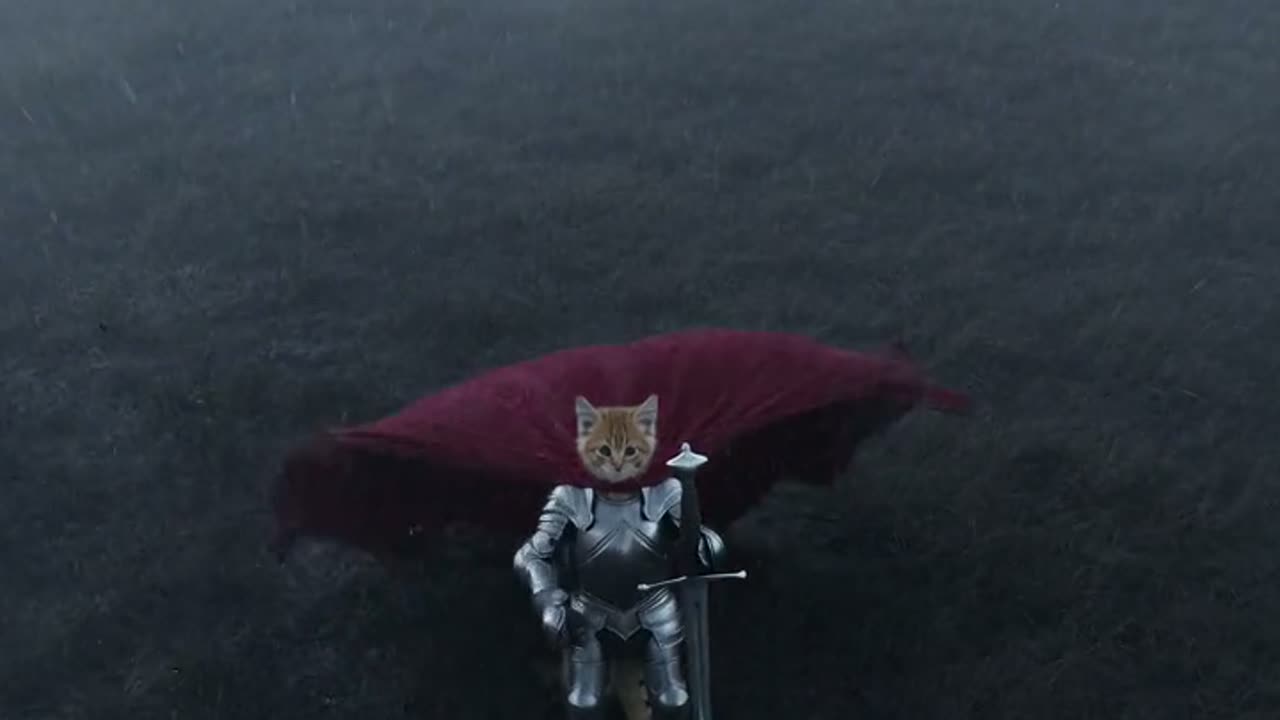
To make a knight cat AI video, upload one clear photo of your cat, sign in, pick one of the four studio presets, choose resolution and length, press generate, and download the MP4 when the render finishes. Six steps, one photo, and one dominant action in the prompt is the entire procedure. Everything else that appears on screen, from the pauldrons and the torchlight to the storm clouds and the castle stones, is produced by the Seedance 2.0 model, which keeps your cat's fur pattern, face shape and markings pinned to the reference photo while it changes wardrobe and setting. This guide walks through each step in order, states what defaults cost, and ends with a troubleshooting table you can use when a render comes back wrong.
What you need before you start
You need three things: one photo, one account, and enough credits for the spec you pick.
The photo matters more than any other input, because it defines the geometry the model is allowed to animate. A single cat, front-facing or three-quarter facing, sharp, evenly lit, with both eyes visible, works best. Phone snapshots are fine. What fails is a photo where the cat is blurred, cropped at the ears, half-hidden behind furniture, or overlapping a second animal, because the model has to guess the parts it cannot see. If you shoot something new for this, put the cat near a window in daylight, hold the camera at the cat's eye level, and take five frames so you can choose the sharpest.
The account is free to create. Signing in with Google grants 30 credits once, which is exactly one default generation. Email sign-up starts at 0 credits until you click the check-in, which grants 10, then 20, then 30, then 10 four more times, one check-in per 24 hours. You can confirm the current numbers on the pricing page before you spend anything.
Two properties of the product are worth knowing up front. Renders are private to your account and nothing is published to a public feed, and no render carries a watermark. If a generation fails, the credits return to the balance they came from, so a failed attempt does not cost you the render budget.
This clip: 30 credits · 6 clips a month for $39.90 (Pro), or 80 a year for $319
The six steps, in order
-
Choose the photo. Upload the single image that will anchor the render. Check that the cat occupies a decent share of the frame rather than sitting as a small shape in a wide room shot, because a subject that fills the frame gives the model more pixels to work with when it builds armor and fur detail. If you are unsure which of your photos suits the process, the walkthrough in turning your cat into a knight covers photo selection in more depth.
-
Sign in and confirm your credit balance. Google sign-in, email sign-up plus check-in, or a purchase all land in the same balance. The balance is displayed next to the generator, so confirm the number before you press generate rather than after. A default render costs 30 credits, and the cheaper specs cost less.
-
Pick a preset. Four presets ship with the studio: Storm-swept moor, Tiny cat, giant knight, Castle gate at dusk, and Guardian of the milk. A preset sets the setting, lighting and wardrobe baseline so you do not have to describe a medieval world from scratch. Choose the one whose scene you actually want, then let your prompt text handle the action.
-
Choose resolution and length. The default is Standard 1080p at 12 seconds, which costs 30 credits. Dropping to 720p at 12 seconds costs 10 credits, and 480p at 12 seconds costs 5 credits. Twelve seconds is the standard clip length; longer clips scale linearly in price and round up. If you are testing a prompt for the first time, render it at 720p and re-render the winner at 1080p.
-
Write one action and generate. Put a single dominant motion in the prompt, such as "raises the sword once" or "turns its head toward the gate", and let the preset carry the scenery. Prompt patterns for specific actions are collected in the knight cat prompt guide. Press generate and wait for the render to finish; do not resubmit while a job is still running.
-
Download the MP4. The finished file downloads as a vertical 9:16 MP4, roughly ten seconds by default at the standard spec, ready for a phone-first feed or a direct upload. File handling, re-downloading after you close the tab, and where renders live in your account are covered in downloading your knight cat video.
What the four presets actually render
Each preset is a scene template, not a filter. It changes the environment, the light direction and the starting wardrobe, and it interacts with your photo differently depending on how the cat is posed.
| Preset label | Scene and lighting | Photo that suits it | Camera baseline | | ---------------------- | ------------------------------------- | --------------------------------------------- | ---------------- | | Storm-swept moor | Open ground, low grey light, wind | Standing or sitting, side-on or three-quarter | Slow push-in | | Tiny cat, giant knight | Scale contrast, second armored figure | Any clear seated pose | Locked-off, wide | | Castle gate at dusk | Stone arch, torchlight, warm rim | Facing forward, head up | Slight dolly | | Guardian of the milk | Indoor hearth, bowl in frame | Sitting close to an object | Static, close |
If a preset returns a scene you like but with the wrong camera feel, change the camera wording in your prompt before you change the preset, because the preset is doing more work than the wording is.
Resolution, length, and what you pay
Credit cost is the product of the spec you choose, not of how complex your prompt is.
| Spec | Clip length | Credits | | ---------------- | ----------- | ------- | | 480p | 12s | 5 | | Standard (720p) | 12s | 10 | | Standard (1080p) | 12s | 30 |
The default delivery spec is Standard 1080p at 12 seconds, which costs 30 credits per generation. The figure printed on the pricing cards as "Standard" is Standard 720p at 12 seconds for 10 credits, so the card number and the default button are not the same spec, and it is worth reading both before you generate. Longer clips scale linearly from these figures and round up. Failed renders are refunded to the source balance.
Identity anchoring: why the cat still looks like your cat
The reason a knight cat video reads as your pet rather than as a generic cat in armor is identity anchoring. The reference photo pins the subject's fur pattern, face shape, eye color and markings, and the model is instructed to preserve them while it rewrites the wardrobe and the environment. Anchoring is not a style transfer and not a face swap; it is a constraint on the render. When the constraint is strong, the cat stays recognizable through an entire costume change. When it is weak, the model drifts toward a generic tabby, and the usual cause of a weak constraint is a photo that does not show enough of the cat's face.
One action per shot
A shot that asks for two or three separate actions will smear or drop some of them. The model has roughly ten seconds and a limited amount of motion budget, and it distributes that budget across everything you describe. Ask for "walks forward, draws the sword, then roars at the gate" and you get three half-finished movements, or one movement and two frozen poses. Ask for "raises the sword once" and the render spends its whole budget on that single gesture, which is why the result reads as deliberate. If you want a sequence, make several generations, one action each, and cut them together.
Why extra limbs appear
Extra limbs show up when the prompt implies a body pose the reference photo does not show. A cat photographed seated, prompted to "stand on its hind legs and hold a banner", forces the model to guess the geometry of limbs that were never visible, and the guess sometimes produces an extra leg or an arm that does not connect to a shoulder. The fix is not a negative prompt. The fix is matching the requested pose to the reference pose, or accepting the seated pose and giving the cat a single action it can perform while sitting, such as raising a paw or turning its head. A clear reference pose plus one action avoids most of these artifacts.
Camera language is also a real parameter rather than decoration. A locked-off static shot is more stable than a moving one, because the model does not have to invent new geometry as the frame travels. Dolly and push-in movements look better on presets with a simple background, and they are more likely to distort the subject when the background is dense with detail.
Troubleshooting: symptom, cause, fix
When a render comes back wrong, the symptom usually points at one specific input problem. Work the table in order and change one thing at a time.
| Symptom | Likely cause | Fix | | ----------------------------- | ---------------------------------------------------------------------------- | ---------------------------------------------------------------------------- | | Blurry or mushy face | Low-detail or motion-blurred reference photo, or a face occupying few pixels | Re-upload a sharp, front-facing photo where the head fills more of the frame | | Extra limbs or a detached arm | Prompt implies a pose the photo does not show | Match the pose to the reference, or keep the cat seated and use one action | | Wrong scale against the scene | Preset conflict, or a wide room shot with a small subject | Use the Tiny cat, giant knight preset, or crop the reference photo closer | | Motion smear across the clip | Two or more actions requested in one prompt | Rewrite for one dominant motion, and try a locked-off camera |
The pattern behind the table is that failures are input problems, not model randomness. Feeding the same prompt and the same photo twice will not produce the same artifact, but it will also not teach the render anything new, so change the photo or the prompt text before you spend another render on it. Cheap 480p passes at 5 credits are the efficient way to test a prompt change before committing to a 1080p render.
After the render
Download the MP4, keep the source photo, and keep the prompt text. The photo and the prompt are the two reusable assets here, because a prompt that worked on one photo is a reasonable starting point on another. If you want more from the same generation, change exactly one variable, either the action or the preset, and re-render; changing both at once tells you nothing about which change worked. The generator home page is where each new generation starts, and the prompt guide collects the action phrasings that hold up across presets.
FAQ
Can I make a knight cat video without a photo? Yes. The generator also supports text-to-video, where you describe the scene and no reference image is uploaded. Without a photo there is no identity anchoring, so the cat in the output is a generic armored cat rather than your pet.
How long does a render take? Treat the render as asynchronous and wait for the job to finish before submitting another. Length and resolution both affect how long the model spends, and the 1080p default is the heaviest of the three specs listed above.
What is the default spec and what does it cost? Standard 1080p at 12 seconds for 30 credits. Standard 720p at 12 seconds is the cheaper 10-credit spec, and 480p at 12 seconds is 5 credits.
Are the renders public? No. Renders are private to your account and nothing is published to a public feed. There is no watermark on any render.
What happens if a render fails? The credits are refunded to the balance they came from, so you can retry without losing the budget. If a credit balance looks wrong after a failure, the pricing page lists the current spec and credit mapping.
Which preset should I start with? Castle gate at dusk is the most forgiving of the four for a first attempt, because the torchlight rim reads well on almost any fur color and the forward-facing pose matches most cat photos. Storm-swept moor and Tiny cat, giant knight both benefit from a reference photo where the cat is clearly separated from the background.